 A world of wonders
Interface
·Interface introduction
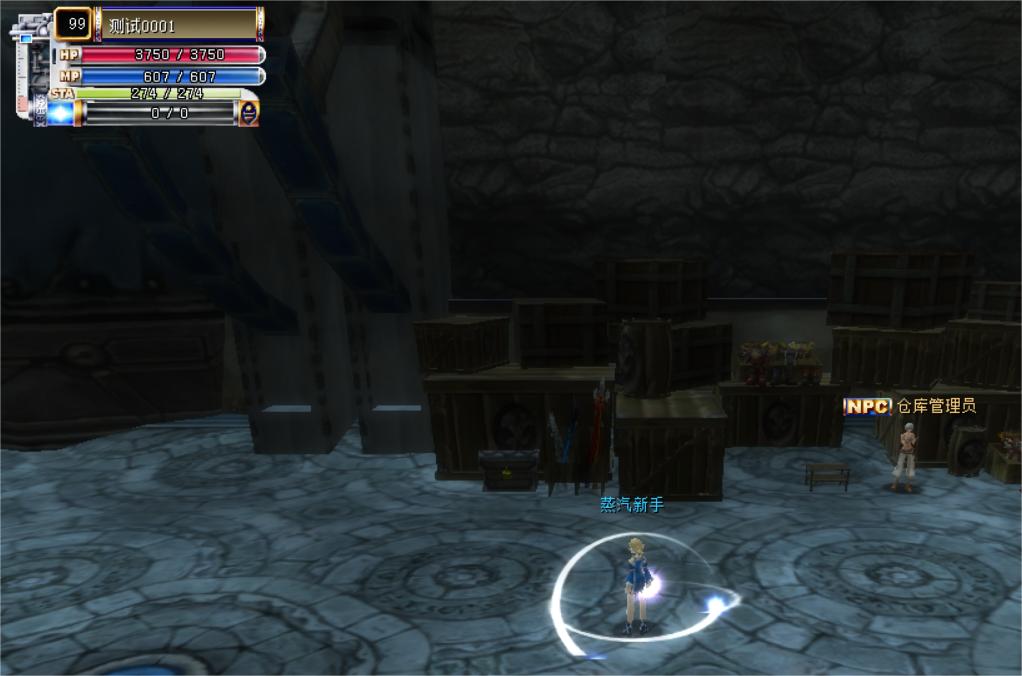
01. Character status window
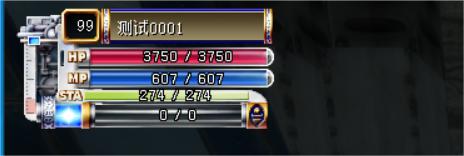
 HP: The physical strength of the character, 0 means death.
 MP: The magic number of the character, the magic energy required when using magic.
 STA: The endurance number of the character, which is required when using skills.energy。
 New steam: a new steam meter for characters, which uses steam energy and other necessary energy sources.
02. Simulated map
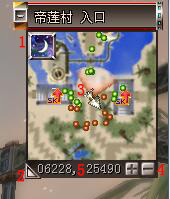
1. Weather: It represents the day and night on the game. You can see the time by putting your mouse on it.
2. Simulation map enlargement/reduction: You can adjust the size of the simulation map.
3. The direction of the field of view seen by the character.
4. "+": enlarge "-" : shrink
5. Coordinates: the position of the character's performance
(In the X.Y coordinate system, if you move east [right on the map], the X value will increase, and if you move north [top on the map], the Y value will increase)
03. Chat window
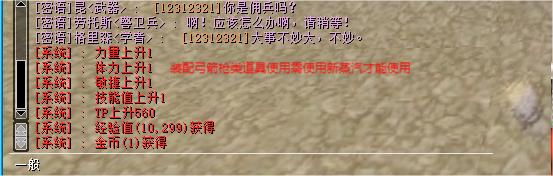
Press (Enter) to activate the activation status window. You can enter content after the activation status window is activated.
Chat window change
04. Chat window change twist
Click [Normal] at the bottom left, and the order will change from [Normal] - [Secret Language] - [Team] - [Union] - [Shout].
Press Enter to activate the chat window, and press [TAB] in the active state to switch the chat window.
Chat content display bar

Decides what is displayed in the chat window.
Click to block a certain dialogue.Chat messages will not be displayed in the chat window.
05. Quick access bar
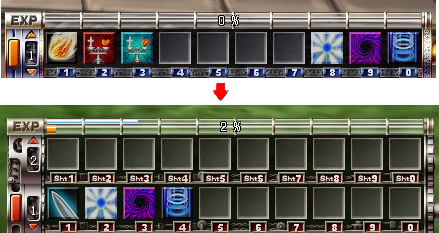
After logging in with mouse skills or consumables, you can use the digital buttons (1~0).
Press the button on the left side of the toolbar to add two toolbars, which can be used to use the toolbar skills logged in at the top using (Shift+number twist).
06. System menu
 Mall column: Click to display mall props.
 Map: Shows the intelligence of the Steam Fantasy region.
 Trade union, friends,Team formation: display the interface of friends, trade unions and team formation.
 Taskbar: Click to display the current tasks you have received.
Character bar: Click to display character information and pet information.
 Skill bar: Click to display the current profession skills.
 Backpack bar: Click to display the items in the backpack.
 System menu: Click to display the system menu bar.
 Help bar: You can get basic operation help.
07. Mouse keyhead
 Default mouse cursor
 Attack the mouse cursor when it is possible.
 Mouse button head in the immovable area
 Mouse button head on NPC: At this time, you can talk to or trade with NPCs by clicking the left mouse button.
 The mouse button head indicated when placed on another character.